



Registering a SimpleX name
A SimpleX name lets people reach you by typing a short @name instead of pasting
a long link. You register the name on a website and add your SimpleX link to it,
then claim the name in the app, to connect it with your SimpleX address or
channel.
A name is optional. It is useful for those who want to be found, such as channels and businesses. When the app looks up a name, the server sees only a hash of the name and cannot link the lookup with the address.
Names currently run on a testing network. The registration page is testing-names.simplex.chat and names end in
.testing. The steps stay the same when the main names launch.In the app, How to register a test name on the SimpleX name screen of Step 4 opens simplex.domains/#testing. Test names stop working in the app when the SimpleX name sale starts, on 12 December 2026 at 18:00 UTC. The app counts down to it under SimpleX name sale starts in.
What you need
- A crypto wallet such as MetaMask.
- The SimpleX app.
- A link for the name to open: your contact address (for one-to-one chats), your channel link (to join a channel), or both.
How it works
Setting up a name takes two parts. On the website you register the name and add your link, so people can find your link by name. In the app you set the same name on your profile - to prevent any other names from opening your profile or channel.

Step 1. Create a wallet
Install MetaMask (browser extension or mobile app) and create a wallet. Write down your recovery phrase somewhere safe and offline, as anyone with that phrase controls your names.
On the testing network you need a small amount of test ETH to pay network fees.
Step 2. Register the name and add your link
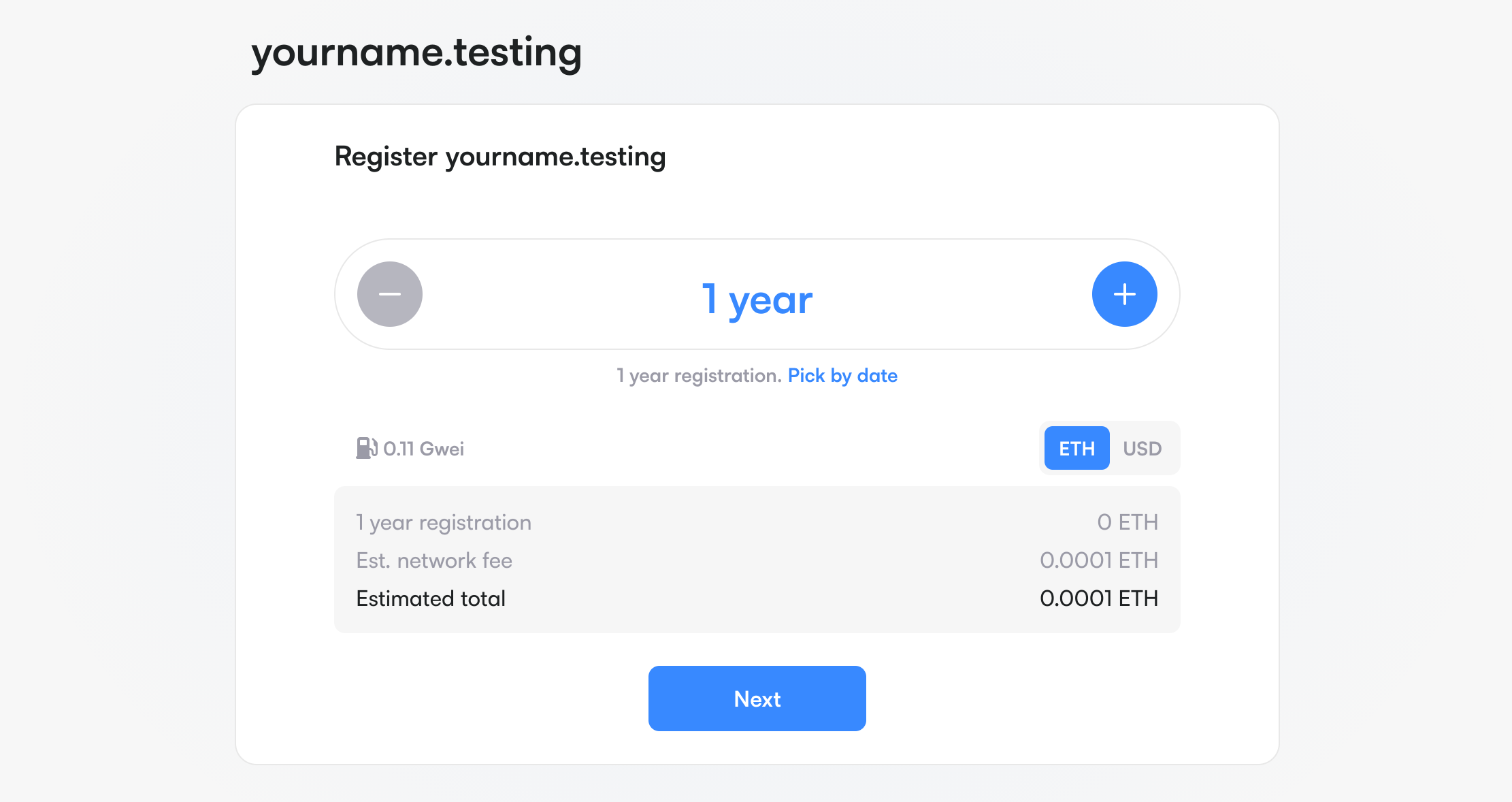
Open the registration page and tap Connect to link your wallet. Type the name you want in Search for a name and open it. Choose how many years to register for, then tap Next. Names are currently 6 characters or more, and some names are reserved.
On Create your profile, paste your SimpleX link into the matching field:
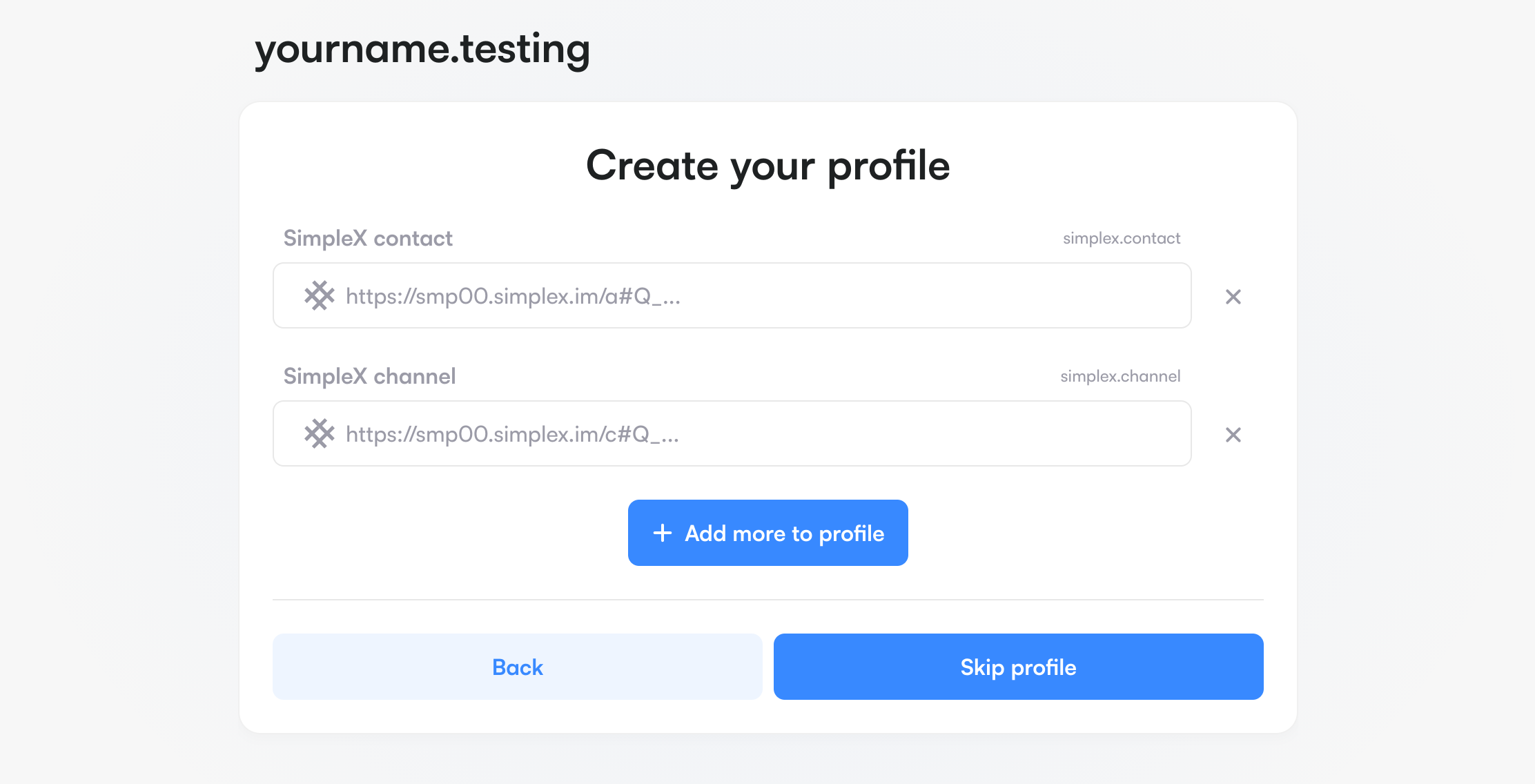
- SimpleX contact for one-to-one chats. Copy your address from the app
(Create SimpleX address) and paste it here. People reach it with
@name. - SimpleX channel for a channel. Copy your Channel link and paste it here.
People join it with
#name. - Advanced usage: fill both to use one name for your chat (
@name) and your channel (#name).
Then tap Next.
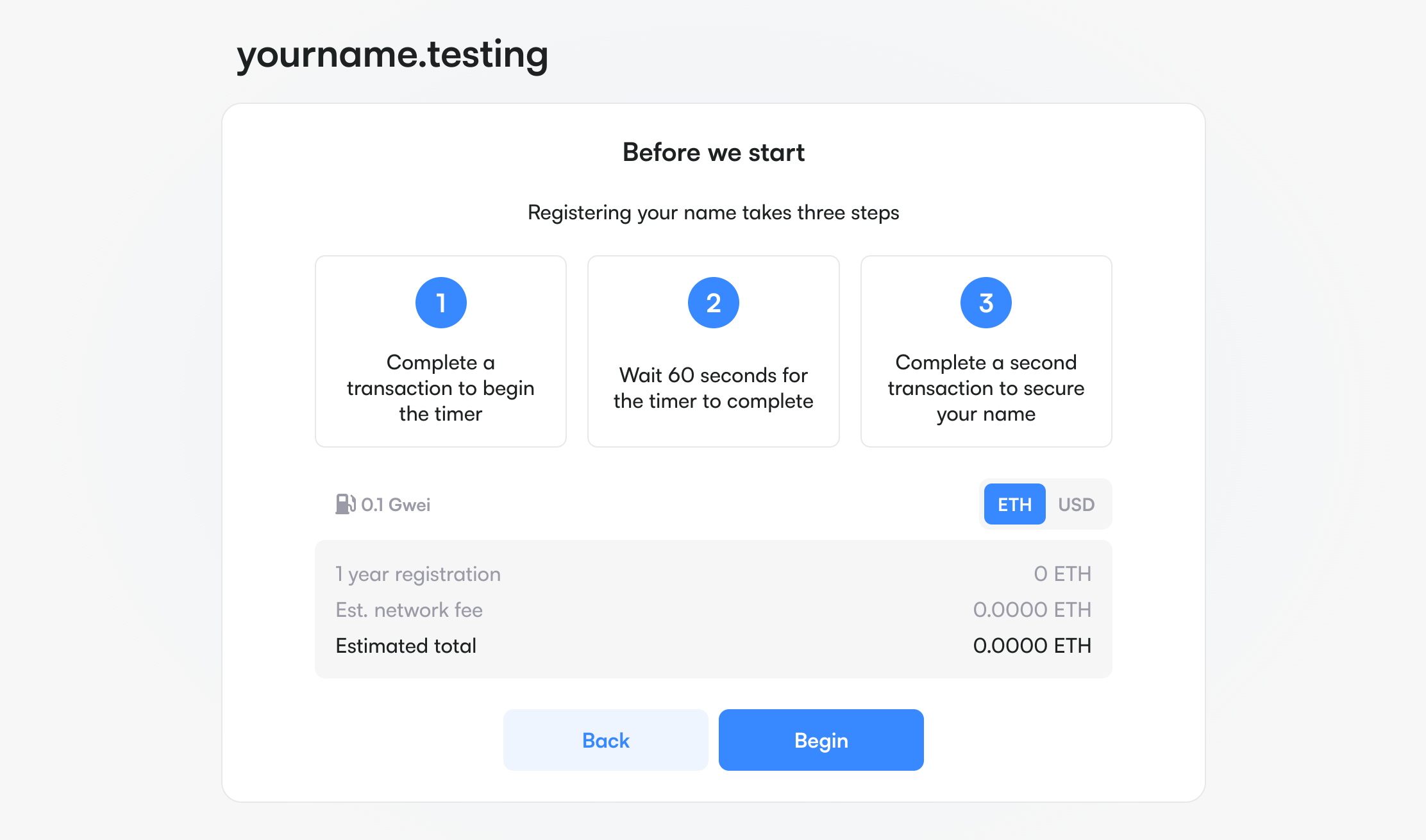
Finally, tap Begin and complete the three steps the site shows:
Before we start. Registering your name takes three steps:
- Complete a transaction to begin the timer.
- Wait 60 seconds for the timer to complete.
- Complete a second transaction to secure your name.
These two transactions protect the name you are registering. The first records only a secret code for the name, not the name itself, so nobody watching the blockchain can see which name you want. The wait lets that first transaction settle, and the second transaction then reveals and claims the name. Without this two-step process, someone could see your registration in progress and grab the name before you.
Step 3. Check what the app sees
Copy your #name.testing (or @name.testing). Paste the name into the search
field, or simply type it, and tap Connect to ….
The app reports that the name is registered but not yet added to your profile:
Unconfirmed name. The SimpleX name is registered, but not added to profile. Please add it to your address or channel profile, if you are the owner.
This is expected, and confirms the name points at your link. The next step finishes the setup.
Step 4. Claim the name in the app
Set the name on the same profile the record points at.
- For your contact address, open your SimpleX address, tap Get SimpleX
name (BETA), enter the full name, for example
@name.testing, and save. - For your channel, open the channel information, tap Get SimpleX name
(BETA) (under Channel link), enter the full name, for example
#name.testing, and save.
A name entered without a dot is saved with .simplex, so enter it with
.testing.
This proves to people who connect to you that #name.testing (or @name.testing) is your name.
Step 5. Connect by name
On another device, copy #name.testing (or @name.testing). Paste the name
into the search field, or simply type it, and tap Connect to …. This time
the app connects, and the name shows a check mark next to it.
You can paste the name in your own device too - the app will warn you that it is your own name.
Anyone can now reach you by name, and their app confirms it is really you.
When a contact or a channel has a SimpleX name, its chat info shows the name. A check mark next to the name means that the app verified it, and a red cross means that the verification failed. To verify a name, tap Verify name next to it. To verify names automatically when you open the chat info, turn on Verify SimpleX names in Your privacy > More privacy. It is off by default.
If something doesn't work
| Message | Meaning | Fix |
|---|---|---|
| Unconfirmed name | The name points at a link, but the link's profile does not claim the name yet. | Do step 4: set the name on the profile it points at. |
| Name not found | No name is registered. | Check the spelling, or register it (step 2). |
| No valid link | The name has no contact or channel link. | Add a link to the name on the website, on its Records tab. |
| Error saving name | You tried to claim a name that has no matching link on the website. | Add your contact address or channel link to the name, then set the name again. |
| None of your servers are set to resolve SimpleX names | No server in the app is set to resolve names. | In Network & servers, open a server operator and turn on To resolve names. |