



Supporter badges
A supporter badge, bought to support SimpleX Chat, is shown next to your name on your chat profile. With a badge, you can send larger files, from 2 to 5 GB, that stay available for 7 to 21 days.
A badge is added to one chat profile. It is shown to your contacts, and in the groups and channels where you use this profile. It is not shown with an incognito profile.
Badge types
| Badge | Benefits |
|---|---|
| Supporter | Files up to 2 GB, stored for 7 days. |
| Legend | Files up to 5 GB, stored for 21 days. |
Without a badge, you can send files up to 1 GB. The app of the person who receives your file checks your badge before it accepts a larger file.
In incognito chats, you can send files up to 1 GB.
Where the app offers a badge
- Settings, then Support SimpleX. With a badge, this row is Your badge or Your legend badge.
- The Support SimpleX banner in the chat list, shown when you have more than 3 chats and no badge. After you tap it once, you can dismiss it.
- The Large file! alert, when you have no badge and choose a file larger than 1 GB and up to 5 GB, outside incognito chats. It has the button Support SimpleX.
- The alert that opens when you tap another person's supporter or legend badge, when you have no badge yourself.
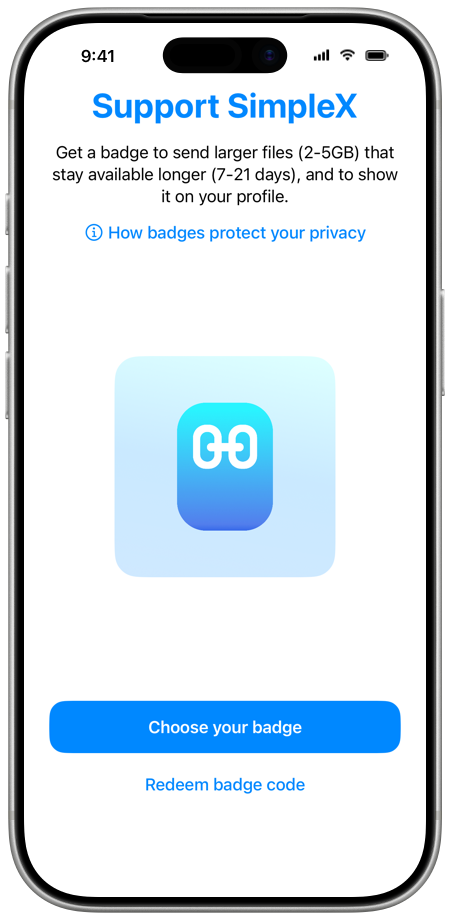
On the Support SimpleX screen are How badges protect your privacy and the ways to get a badge on your platform.
Get a badge
| iOS | Android from Google Play | Android from F-Droid or GitHub, and desktop |
|---|---|---|
| Choose your badge: the badge page in your browser. Redeem badge code: a badge from a code. | Choose your badge: a purchase in the app with Google Play. Restore purchases: "Moves a paid badge to this profile." Redeem badge code: a badge from a code. In the United States, Buy in browser is offered as well, and Redeem badge code is on the Choose your badge screen. | Buy in browser: the badge page in your browser. Redeem badge code: a badge from a code. |
Buy on the badge page
Tap Choose your badge (iOS) or Buy in browser to open the badge page, badges.simplex.chat. On the page, choose a Supporter or Legend badge and the number of months, and pay by card, Bitcoin or Monero.
- When the app is registered to open links from the page, the page shows Return to SimpleX after the payment. Tap it to open the app, which asks Add badge to your profile? and names the profile. Tap Add badge. Tap Show code on the page to see the badge code.
- Otherwise, the page shows the badge code, Copy code, and a QR code to scan with your phone. The code is saved only in that browser. Redeem it as described below.
The iOS and Android apps are registered to open these links. When the desktop app is not registered to open them, it opens Redeem code next to the browser.
A profile has one badge at a time. If it already has a badge, you can add the new badge to another profile, or to this profile after the current badge ends.
A badge bought on the badge page is not renewed. It ends when the prepaid months run out.
Buy in the app with Google Play
In the Android app from Google Play:
- Open Settings, then Support SimpleX, and tap Choose your badge.
- Choose Supporter or Legend, and tap Continue.
- Choose 1 month, Monthly or Annual, and tap Continue. Monthly and Annual are subscriptions that renew until you cancel them.
- Check your order and tap Pay. Complete the payment in Google Play.
While the badge is being added, the app shows Issuing your badge. When the payment needs approval, the app shows Waiting for approval, and nothing is charged until it is approved.
Redeem a badge code
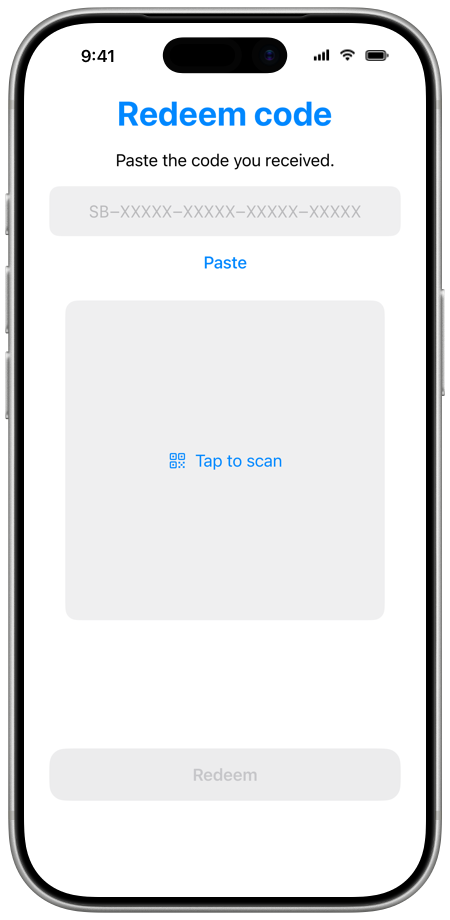
- Open Settings, then Support SimpleX, and tap Redeem badge code.
- Tap Paste, type the code, or scan its QR code. Badge codes look like SB-XXXXX-XXXXX-XXXXX-XXXXX. Scanning is available on iOS and Android.
- Tap Redeem.
The badge is added to your current profile.
| Message | Meaning |
|---|---|
| This profile already has a badge. | A profile holds one badge at a time. Use the code with another profile, or after this badge ends. |
| This code was not recognized. | Check the code. |
| This code has already been used. | The code was redeemed before. |
| This code has expired. | The code can no longer be redeemed. |
| The code was accepted, but the badge it grants has already ended. | The paid period of the code is over. |
| Too many attempts. Please try again later. | Wait before you try again. |
Your badge
With a badge, open Settings, then Your badge (or Your legend badge). On the Your badge screen are:
- The badge, its type, and "shown on your profile".
- Benefits: the file size and storage time.
- Ends with the date, for a badge without renewal, or Subscription with its state.
- How badges protect your privacy.
- Error, when the badge could not be renewed, with Contact SimpleX team.
| Subscription state | What the app shows |
|---|---|
| Renewing | Renews with the date, and the price when it is known. |
| Cancelled | Ends with the date until which the badge stays. |
| Payment failed | Payment problem, with a request to update your payment method. |
| Ended | Ended. The badge will be removed. |
Tap Manage subscription to open your subscriptions in Google Play.
The app updates the badge every month while paid months remain, with no action from you.
Badge alerts
The chat list shows a banner about your badge in these cases. Tap the banner to open Your badge, or Support SimpleX when the badge has ended.
| Banner | When |
|---|---|
| Your badge expired | A badge without renewal has ended. |
| Your subscription ended | The subscription has ended. |
| Badge payment problem | The store could not charge your payment method. |
| Badge renewal failed | The badge could not be renewed. |
| Subscription cancelled | The subscription was cancelled, and the badge stays until its end date. |
| Your badge renews soon | 3 days before an annual subscription is renewed. |
To close a banner, tap its close button and choose Remind me later, to see it again after one day, or Dismiss.
How badges protect your privacy
A badge is an anonymous credential stored in your profile on your device. SimpleX Chat has no user accounts, so the badge is not attached to an account. The credential itself is not sent to anyone.
To show a contact or a server that you have a badge, the app generates a new proof each time. A proof contains the badge type and the expiry date, rounded to a week. Two proofs cannot be linked to each other or to the purchase.
The app sends a new proof with your profile each time it sends the profile: to a new contact, in your SimpleX address and 1-time links, to the groups and channels you join, to your contacts when a badge is added, and with your profile updates. A file larger than 1 GB is sent with a proof as well.
The expiry date is the same for all badges whose paid month ends in the same week: the end of the following Monday. The apps of other people accept a badge for 7 days after this date. After that, the badge is shown dimmed, and one month later it is no longer shown.
The design is described in the supporter badges whitepaper.
Badges of other people
A badge is shown after the person's name. Tap it in the contact info, in the member info, or in the profile shown at the start of the chat to see what it means:
- "[name] supports SimpleX Chat." for a supporter or legend badge;
- "[name] supported SimpleX Chat. The badge expired on [date]." for a recently expired badge.
When the app cannot verify a badge, it shows a warning sign in its place. Tapping it shows Unverified badge, or Badge cannot be verified when the badge is signed with a key that this version of the app does not recognize.